

For Education
Connect and Protect Students on Any Device
One platform keeps students on task and safe
across all devices.
For Business
The Most Secure Remote Access Solution
Connect with confidence to ATM, POS and other
sensitive devices.
For Education
Connect and Protect Students on Any Device
For Business
The Most Secure Remote Access Solution
What We Offer Our Customers
Secure Remote Access
The majority of network data breaches occur through unsecured remote access points. That's why some of the world's largest institutions turn to Impero for secure remote access solutions that provide agile access without increasing network vulnerability.
Remote Access - Heathcare
Keep patient data secure while ensuring your healthcare IoT environment stays up and running. Impero Connect remote access solutions work with specialized devices while meeting rigorous healthcare security standards.
Remote Access - Retail
With support for a variety of operating systems including Toshiba TCx™ Sky & 4690, Impero Connect delivers the efficiency, flexibility, and security you need to manage your retail environment, all in one, consolidated tool.
Remote Access - Banking
Financial institutions rely on Impero Connect to reduce travel costs, save time, and lower overhead when supporting end users, maintaining ATMs and meeting SLAs. Our integrated security tools protect your IT environment as well as customer data, helping you stay PCI compliant and exceed your financial institution's security standards.
Remote Access - Manufacturing
Impero Connect provides fast, secure and reliable remote control of current and legacy production devices.
Classroom Management
Got Windows? Chromebooks? Macs? IPads? Android? Impero Classroom can handle all of it, delivering real-time monitoring in or out of the classroom.
Student Safety
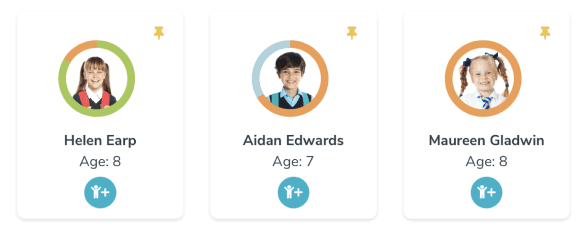
Keep students safe and detect issues early with contextual keyword alerts and a full chronology of every student's safety history.
Filtering
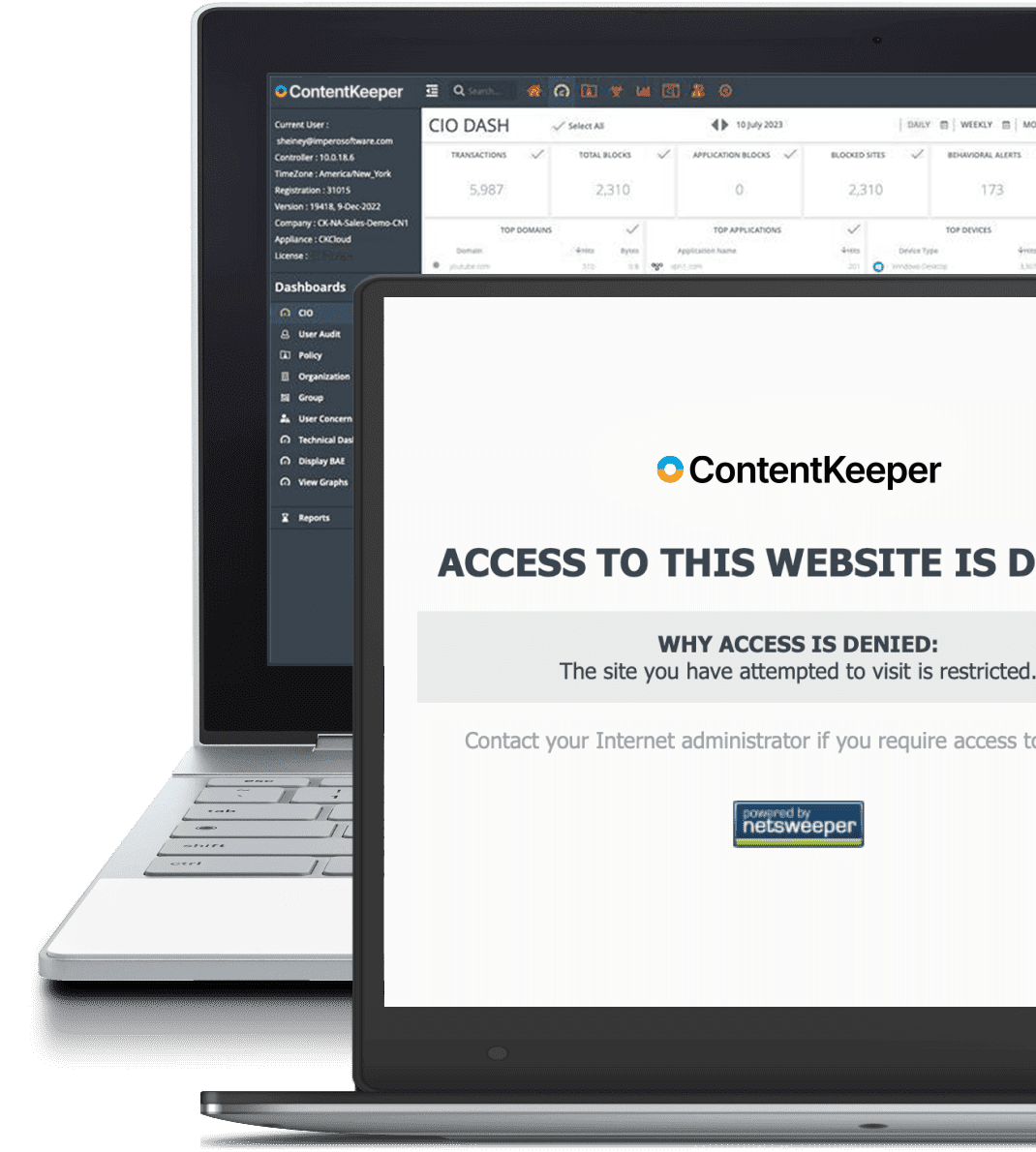
Stop malicious attacks, suspicious activity, and rogue applications with powerful web filtering for all platforms, operating systems, and BYOD devices.
Secure Remote Access
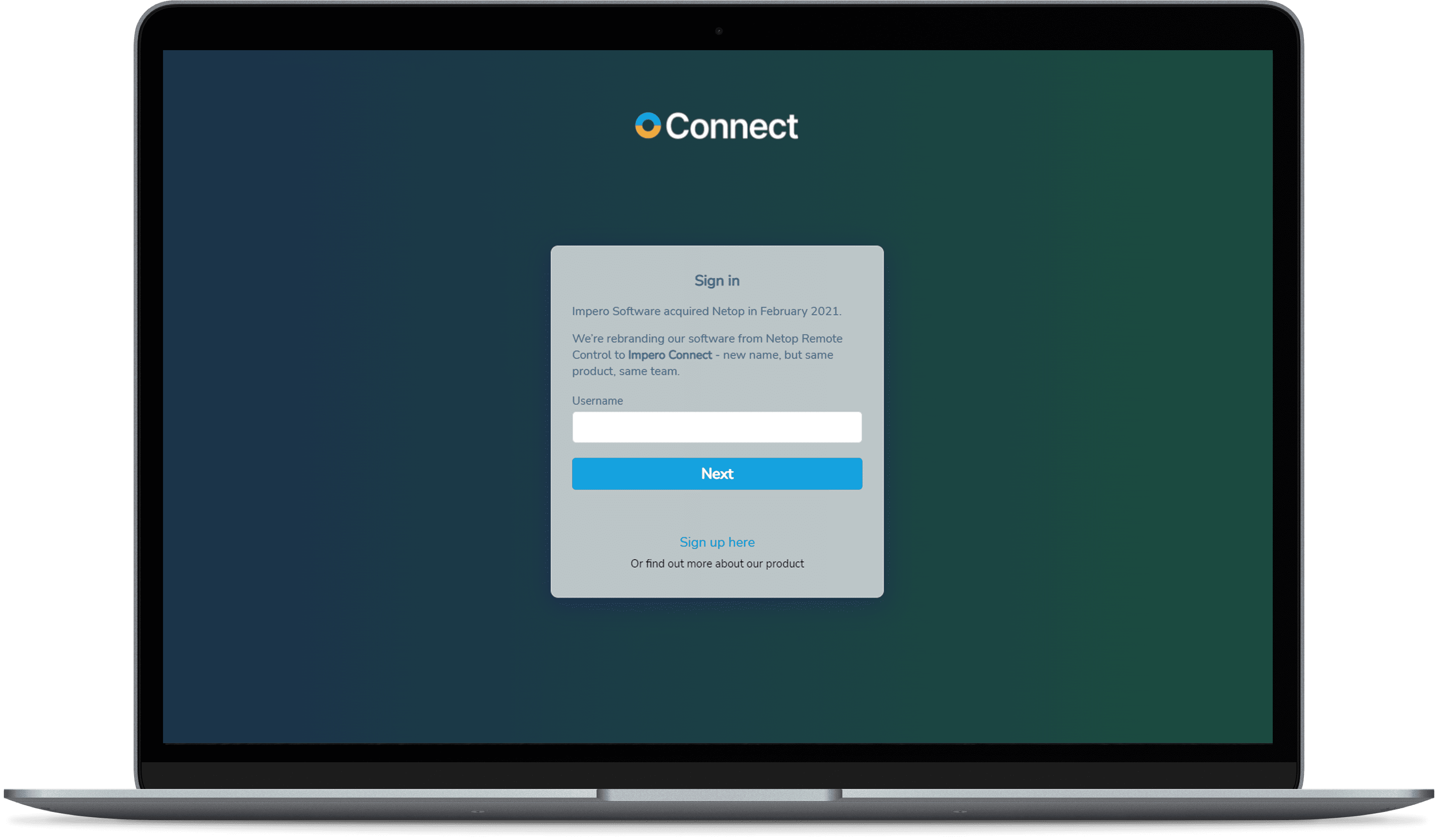
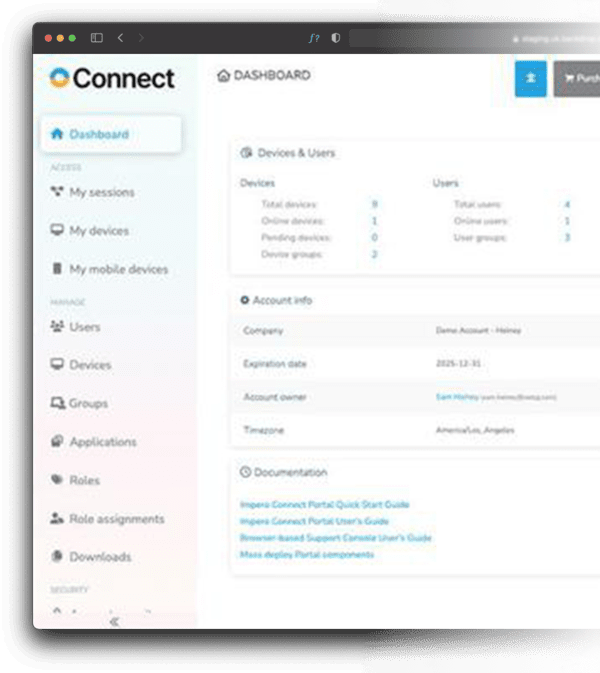
Get through your ticket backlog with remote access that doesn't leave you exposed to hackers.
Secure Remote Access
The majority of network data breaches occur through unsecured remote access points. That's why some of the world's largest institutions turn to Impero for secure remote access solutions that provide agile access without increasing network vulnerability.
Student Safety
Keep students safe and detect issues early with contextual keyword alerts and a full chronology of every student's safety history.
Filtering

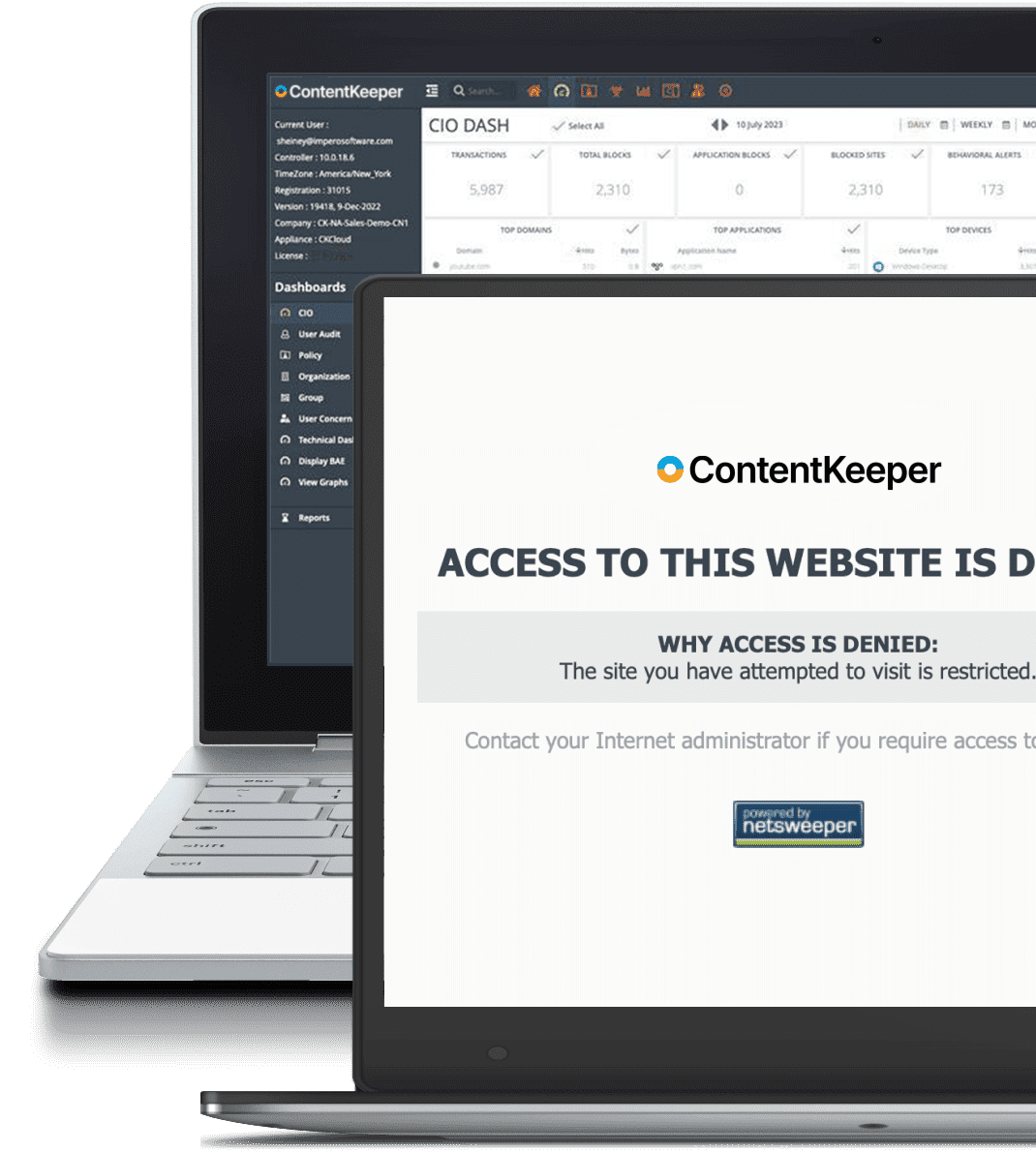
Stop malicious attacks, suspicious activity, and rogue applications with powerful web filtering for all platforms, operating systems, and BYOD devices.
Secure Remote Access
Get through your ticket backlog with remote access that doesn't leave you exposed to hackers.
Our Technology Partners
Our committed partnerships ensure that Impero technology continues to deliver value by developing solutions specifically tailored to the needs of our customers.




Our Technology Partners
Our committed partnerships ensure that Impero technology continues to deliver value by developing solutions specifically tailored to the needs of our customers.
Why Our Customers Choose Us

Security
Our solutions keep your users and data safe from known threats and inadvertent breaches from unauthorized user activity.

Compatibility
Only Impero provides solutions with native support for a broad range of operating systems.

Deployment Options
Cloud-based, on-prem or hybrid - Impero solutions can be configured to meet your unique needs.

Insights
Get a holistic view, of your students, your school, or your network access without hassling with spreadsheets.

Efficient
Our solutions are cross-platform and modular to make your work simpler and easier.

Support
24x7 support with superior customer satisfaction.
Why Our Customers Choose Us
-
Security
Our solutions keep your users and data safe from known threats and inadvertent breaches from unauthorized user activity.
-
Compatibility
Only Impero provides solutions with native support for a broad range of operating systems.
-
Deployment Options
Cloud-based, on-prem or hybrid - Impero solution can be configured to meet your unique needs.
-
Insights
Get a holistic view, of your students, your school, or your network access without hassling with spreadsheets.
-
Efficient
Our solutions are cross-platform and modular to make your work simpler and easier.
-
Support
24x7 support with superior customer satisfaction.
Trusted By The Best